surveychat



📄 Working paper describing surveychat in more detail can be read here.
surveychat is an open-source web application that enables researchers to administer surveys and conduct randomized experiments involving large language model (LLM)-based conversational agents, without the need to develop custom web application code. The system supports two primary operational modes: (i) survey mode, in which all participants interact with an identical chatbot configuration, and (ii) experiment mode, in which participants are randomly assigned to one of multiple chatbot conditions, each defined by a researcher-specified persona and language model. Upon completion of the interaction, participants receive an anonymized JSON transcript that contains only the role, content, and timestamp of each message. This transcript can be copied back into the parent survey platform (such as Qualtrics), within which the chatbot interface itself can also be directly embedded. The frontend of surveychat is implemented using Streamlit, and the entire application is configured via a single Python file. The system does not persist conversation data on its server and is compatible with any chat-completions-compatible API endpoint - including locally hosted models - thereby allowing researchers to retain full control over model selection, API usage, data jurisdiction, and adherence to ethical and regulatory requirements.
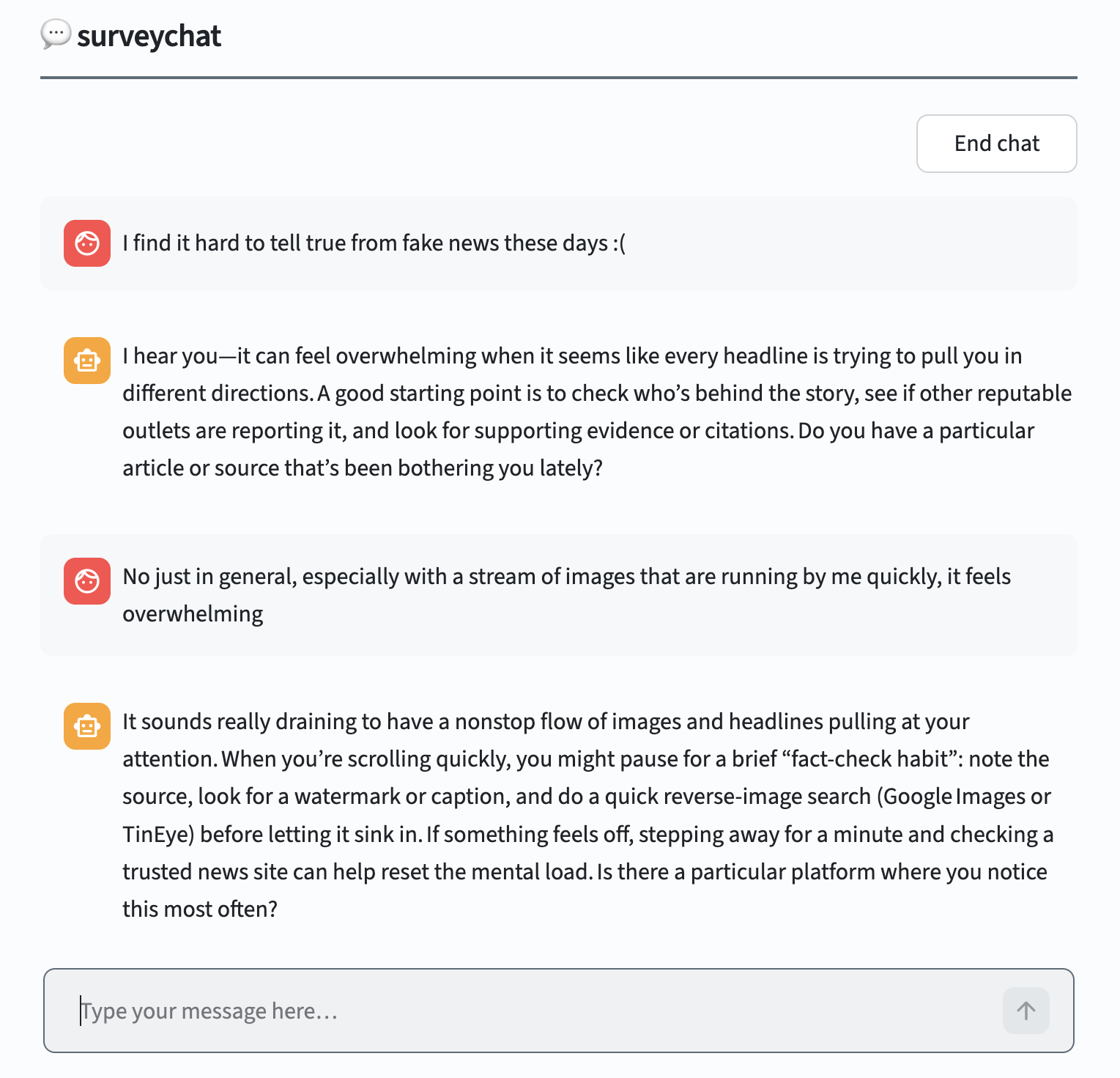
Participants chat with the AI model |
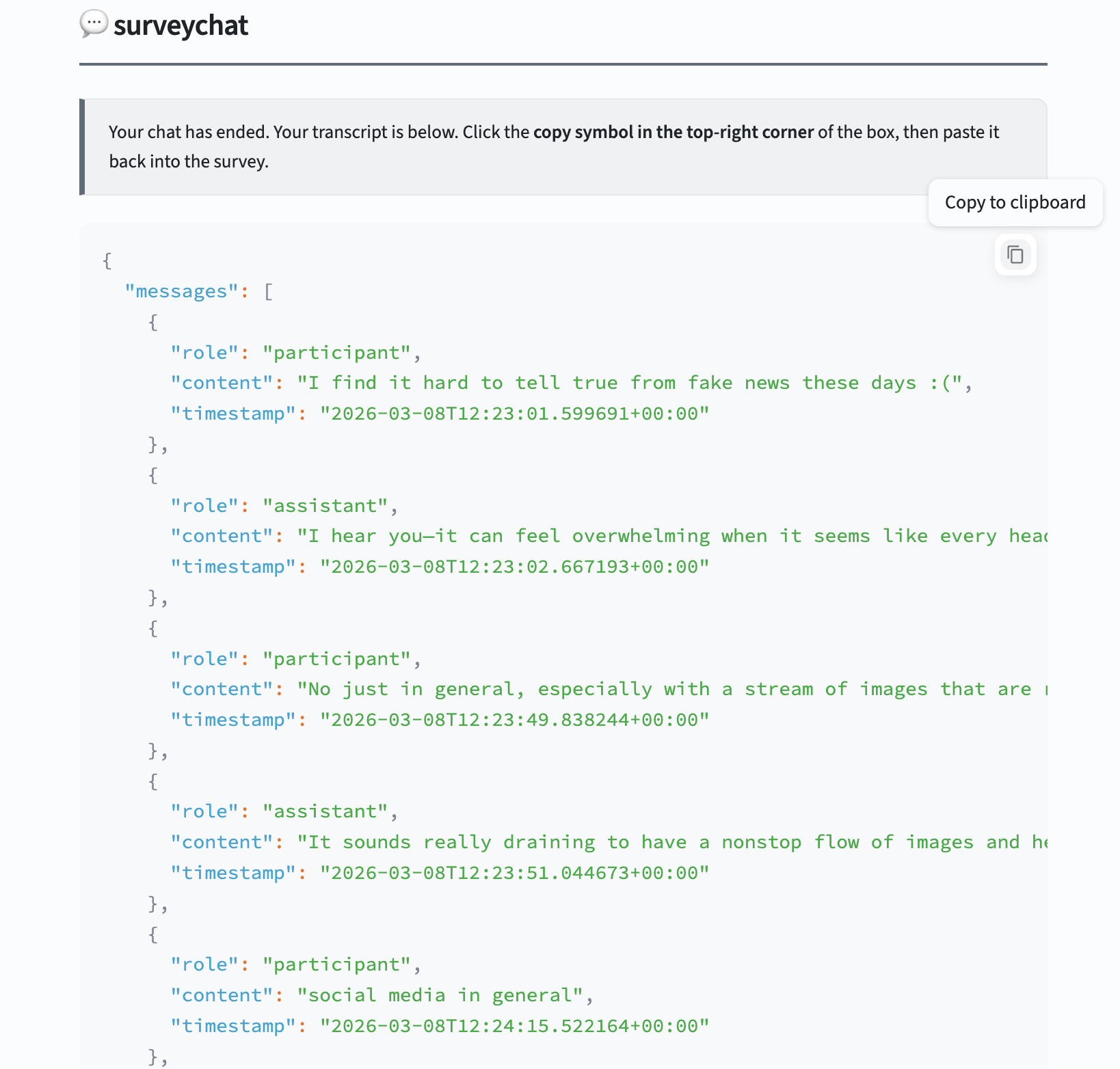
Participants paste their conversation transcript into your survey (e.g., Qualtrics) |
Contents:
Before you start
You will need:
- Python 3.10 or newer - check with
python3 --versionin your terminal. Download from python.org if needed. - An API key - from a provider such as OpenAI, Azure, Hugging Face, or OpenRouter.
- A terminal - Terminal on macOS/Linux, or Command Prompt / PowerShell on Windows.
Run locally
Good for testing on your own computer before sharing with participants.
Step 1: Fork and clone the repo
Click Fork on the GitHub page to create your own copy, then clone it:
git clone https://github.com/YOUR_USERNAME/surveychat.git
cd surveychat
pip install -r requirements.txt
cp .env.example .env
Don’t have git? Download it from git-scm.com. On macOS it may already be installed - check with
git --version.
Step 2: Add your API key
Open the .env file in any text editor and replace your-api-key-here with your actual API key:
OPENAI_API_KEY=sk-...
Step 3: Configure the chatbot
Open app.py in a text editor. Find the block that starts with:
# ╔══════════ RESEARCHER CONFIGURATION ═══════════╗
Set N_CONDITIONS = 1 for a single chatbot (survey mode), or a higher number for an experiment with multiple chatbot versions. Then edit the CONDITIONS list to write your chatbot’s instructions:
CONDITIONS = [
    {
        "name":          "Interview bot",
        "system_prompt": "You are a friendly research interviewer. Ask one open-ended question at a time about the participant's social media habits. After 5-6 exchanges, thank them and let them know they can click End this chat.",
        "model":         "gpt-4o",
    },
]
In experiment mode (
N_CONDITIONSgreater than 1), add a unique"passcode"to each condition (e.g."passcode": "ALPHA") - participants enter this code to reach their assigned condition. In survey mode a passcode is optional.
Also set API_BASE_URL near the top of the configuration block to match your provider - for example "https://api.openai.com/v1" for OpenAI or "https://openrouter.ai/api/v1" for OpenRouter. The repo ships with a different default, so update it unless your provider matches.
Step 4: Run the app
streamlit run app.py
Your browser will open automatically at http://localhost:8501. This URL only works on your own computer.
Deploy online (Streamlit Community Cloud)
This gives you a permanent public URL you can share with participants - free for public repos, no server to manage.
- Push your modified repo to GitHub (your
.envfile is automatically excluded from the upload). - Go to share.streamlit.io and sign in with your GitHub account.
- Click Create app, then select your repo and
app.pyas the main file. - Under Advanced settings → Secrets, add your API key exactly as shown:
OPENAI_API_KEY = "sk-..." - Click Deploy. You will get a public URL to embed inside Qualtrics, or share directly with participants.
Deploy online (other platforms)
You can also deploy on platforms like Azure, AWS, or DigitalOcean. The process is different for each platform and may require additional configuration (e.g. for environment variables, dependencies, and web server setup). Refer to the platform’s documentation for deploying Streamlit web apps.
Help and documentation
See the full documentation on GitHub for configuration options and troubleshooting.